Upgrade your Power BI App
Prerequisites and steps for upgrading your Business Central Insights Power BI apps safely.

Before you upgrade
Upgrade the Insights Connector first.
Before upgrading the Power BI app, make sure the Insights Connector for Power BI in Business Central is already on the latest version. Once that is complete, return here and continue with the Power BI upgrade.
Confirm you have Admin access to the Power BI workspace.
This is required to manage and upgrade apps successfully: check your workspace role.Verify the semantic model ownership and configuration.
Ensure the semantic model is correctly configured under your account to avoid refresh and permission issues: take control of the semantic model.
Upgrade the Power BI app
1. Sign in to Power BI
Sign in to Power BI with the account that owns the semantic model.
2. Open the app workspace
Select Workspaces and open the workspace for the app you want to upgrade.
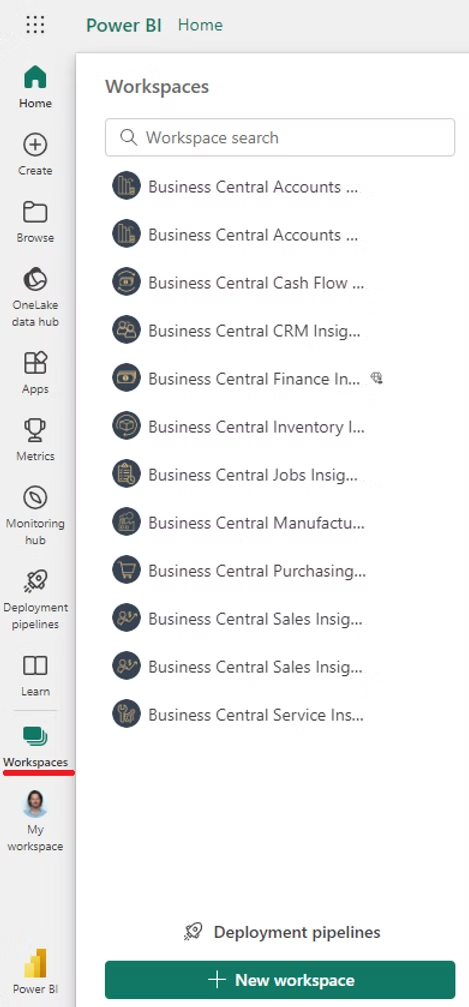
3. Click "Get it now"
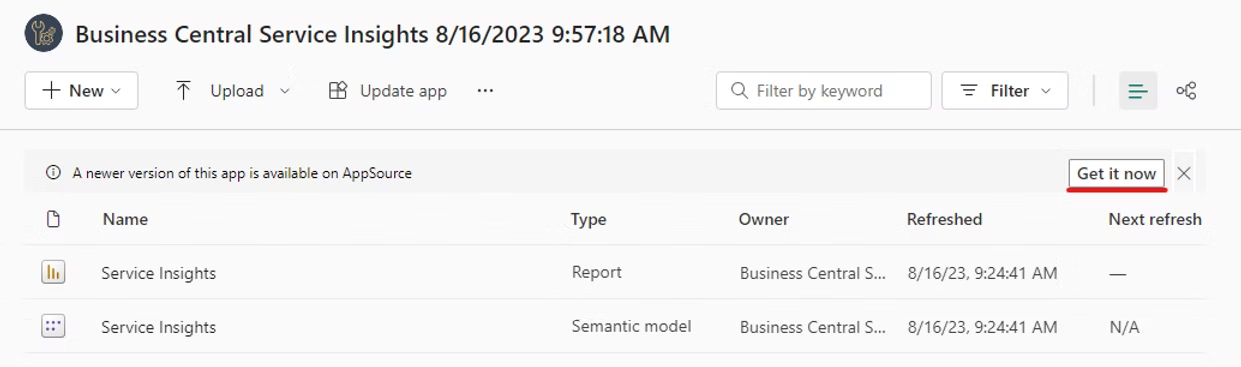 Use "Get it now" in the update notice. Do not use the "Update app" button at the top of the workspace yet.
Don't click "Update app" yet. That button republishes your existing Power BI app. First use Get it now to install the new version into the workspace. You will use Update app later, in Step 5.
If "Get it now" is not visible, check these in this order:
Confirm that an upgrade is actually required. Compare your installed Power BI app version with the latest available version: check Power BI app versions.
Confirm that you are a workspace Admin. Learn how to check your workspace role.
Confirm that the semantic model is configured under your account. Learn how to take control of the semantic model.
4. Choose “Update only workspace content without updating the app”
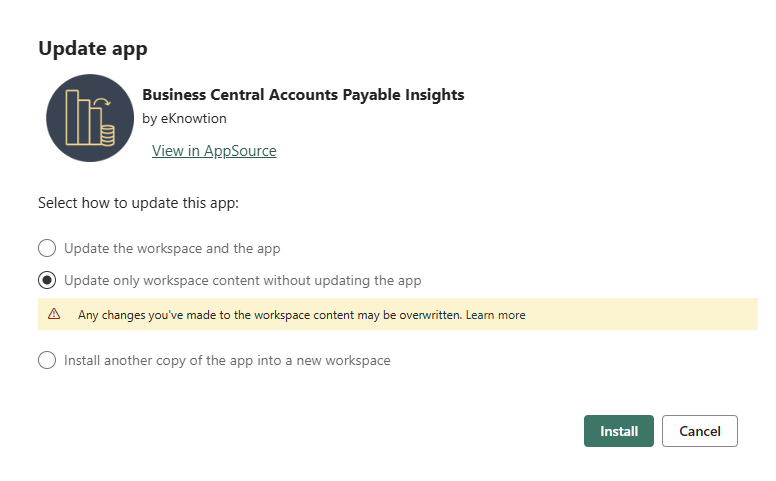 Power BI presents three update options:
❌ Do not select: Update the workspace and the app
This option may add a date and time suffix to the workspace name. Renaming the workspace can affect custom reports and other solutions connected to its semantic models.
✅ Select: Update only workspace content without updating the app
This updates the reports and semantic model while keeping the existing workspace name unchanged. Select this option, then select Install.
❌ Do not select: Install another copy of the app into a new workspace
This creates another copy of the app in a separate workspace instead of updating the existing workspace.
Once the app has been installed, the data refresh will begin automatically.
Please note: Reports may temporarily display sample data while the first refresh is running. Wait for the refresh to finish before reviewing the reports.
Make sure that automatic data refresh is enabled so that your reports continue to receive the latest data. For instructions on how to configure and verify it, see Schedule automatic data refresh.
5. Publish the updated app to your users
Step 4 updates the content in the workspace. If your users access the reports through a published Power BI app, you now need to republish the app so they receive the updated version.
Do you need this step?
If the button at the top right of the workspace says Update app, continue with this step. If it says Create app, there is no existing published app to update.
Open the workspace and select Update app in the top-right corner.
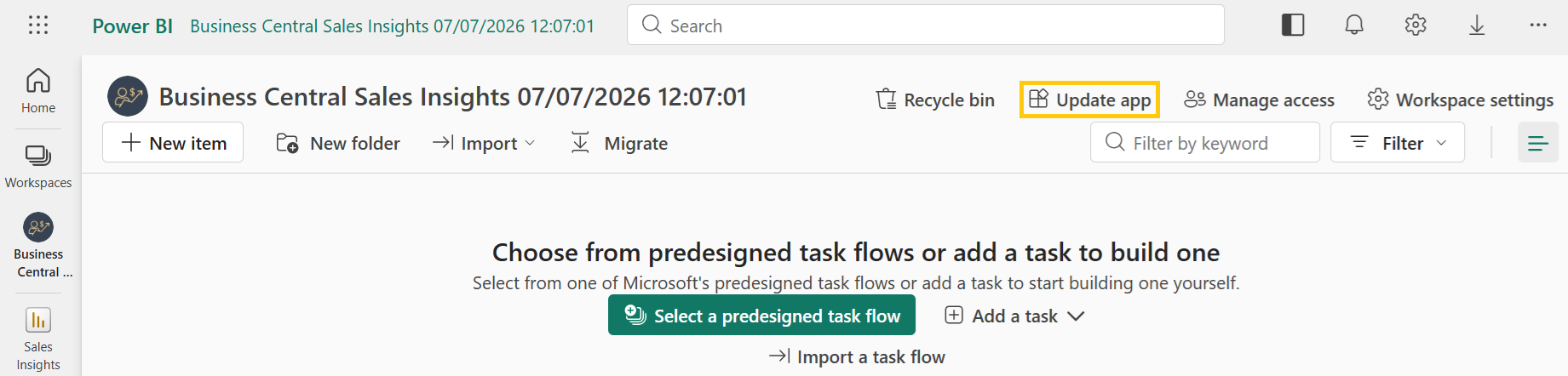
Review the app setup and content to make sure the reports your users need are included.
If you want the app to be installed automatically for selected users, use the Install this app automatically setting.
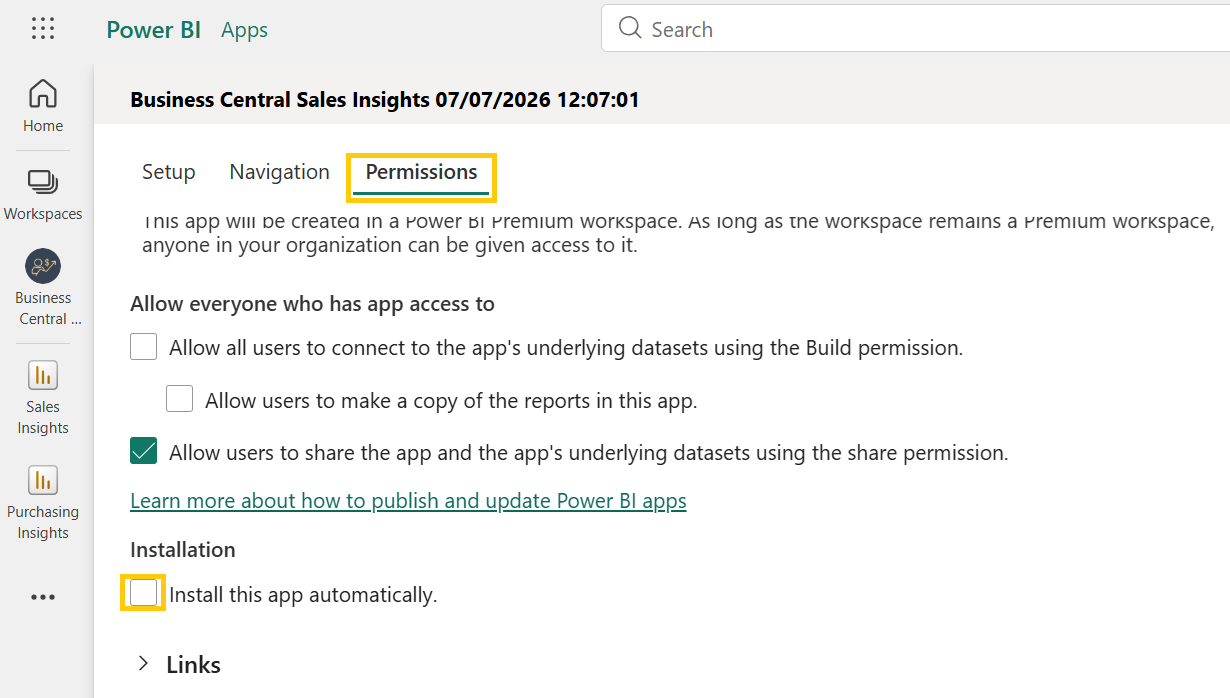
Select Update app in the bottom-right corner to publish the updated content to your users.
For more information on how to share the reports with other users, see: Share the app with colleagues
Need help?
If you experience issues during or after an upgrade:
Email support@eknowtion.com and include the data refresh error: how to find the refresh error