Report shows no data or filters aren't applying? Reset the filters first

When to use this
Visuals are blank or show "no data", even though the data exists in Business Central.
Totals look wrong for the period, company, or dimension you selected.
Slicer selections don't appear to change anything.
Why it happens
Power BI remembers your filter and slicer selections and restores them the next time you open the report. This includes filters set in the Filters pane, on other pages, or on all pages. A leftover selection from an earlier session (a date range, a company, a dimension value) can hide everything on the page, even when nothing looks selected in the slicers in front of you.
How to reset
Open the report in Power BI (app.powerbi.com).
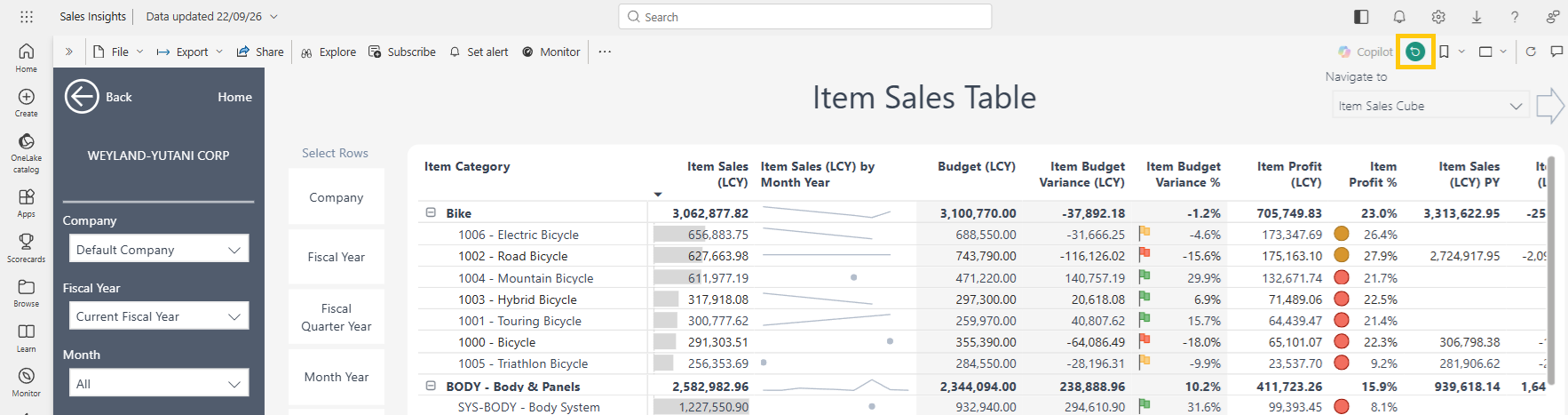
In the toolbar at the top right, click Reset (the circular-arrow icon). Hovering over it shows "Reset filters, slicers, and other data view changes you've made."
The report returns to its default view. Filters, slicers, sorting, and drill selections you changed are cleared on every page, not just the one you're on.
Re-apply only the filters you need.
Good to know
Reset only clears your own view changes. It doesn't change the data and doesn't affect other users.
Some filters will still appear in the Filters pane after resetting. These are the app's default filters and are meant to be there.
The Refresh button next to Reset only re-queries the visuals; it doesn't clear filters.
If the report is embedded in Business Central or Teams and you can't see the toolbar, open it directly in Power BI.
Still no data after resetting?
Check when your data was last refreshed. See How to check when your data was last refreshed.