Receivables Aging as of Any Date for Business Central

Receivables Aging (Back Dating) for Business Central
Part of Accounts Receivable Insights app for Microsoft Dynamics 365 Business Central
What this report does
The Receivables Aging (Back Dating) report shows what your customers owed you as at any date you choose, not just today.
A standard aging report can only ever show the current position, because it reads the remaining amount on each open entry. This report rebuilds the ledger instead. It takes every detailed customer ledger entry, keeps only those posted on or before your Aged As Of date, and adds them together. Anything that happened afterwards — a payment, a credit memo, an application, a payment discount — is simply not counted, so an invoice that has since been settled reappears at its original outstanding value.
That makes the report the right tool for:
Reconciling the customer sub-ledger to the general ledger at a month-end or year-end that has already passed
Reproducing an aged trial balance for auditors, without having to keep printed copies
Reviewing collections performance historically — how the aging profile looked three months ago versus today
The figures reconcile to Business Central's own back-dating aged accounts receivable report when the same options are used.
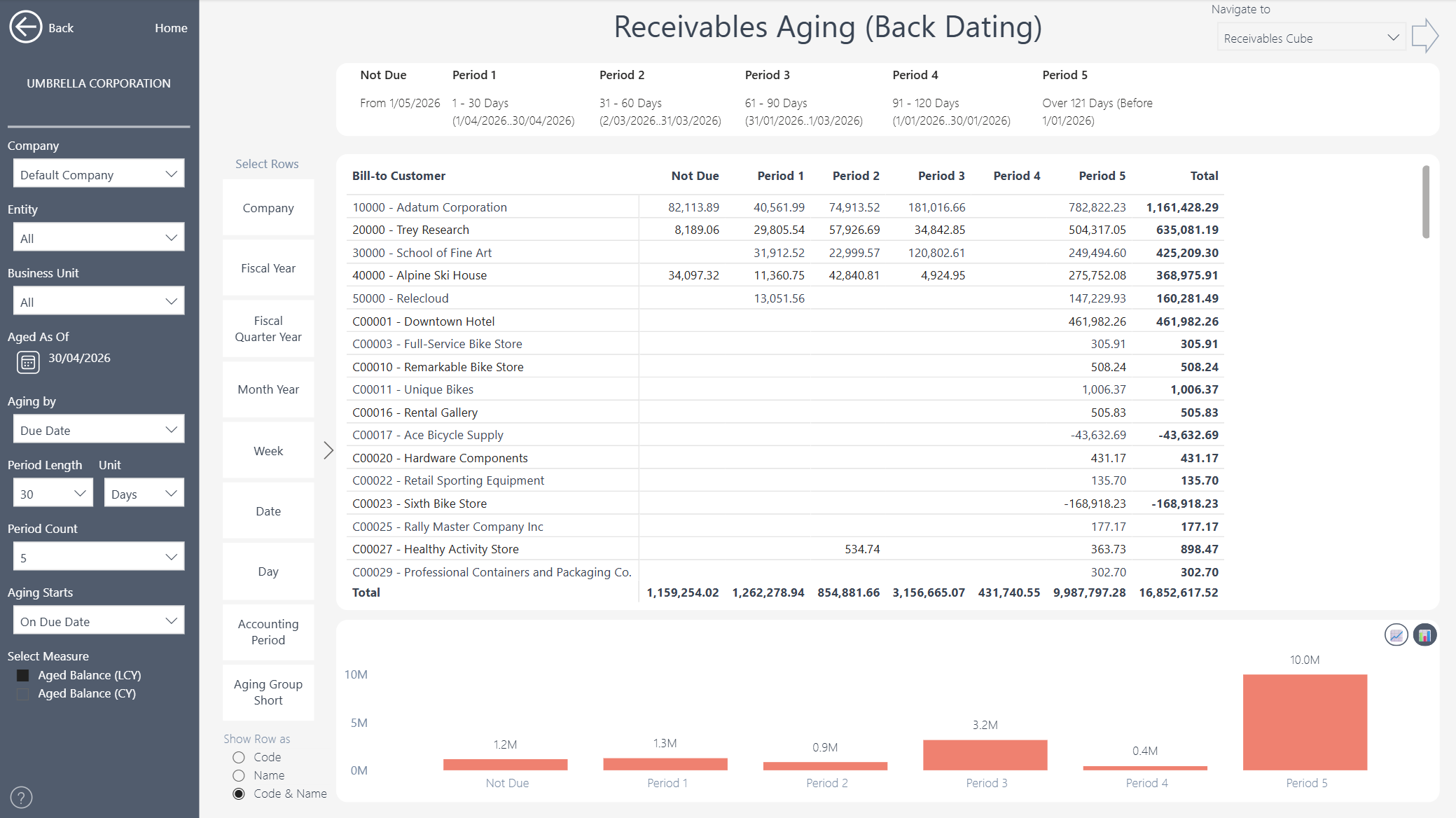
Reading the report
Across the top, a card for each column shows what that bucket contains — the day or month range and the concrete date interval behind it, for example 1 - 30 Days (1/04/2026..30/04/2026). The Not Due card shows the date the bucket starts from.
The matrix underneath breaks the balance down by whatever you have chosen in Select Rows, with one column per aging period plus a Total. The columns always add up to the total, and the total always equals the customer's balance as at the as-of date. Credit balances appear as negative figures.
The bar chart at the bottom summarises the same figures by aging period, so you can see the shape of the debt at a glance.
Filters and settings
Aged As Of
The date the report is built for. Everything posted after this date is excluded, which is what produces the historical balance. Click the day twice in the calendar to select it. A single click starts a date range and leaves the second end open, so the report will not age to the day you intended. The second click closes the range onto that one day, which is what the report needs.
You can pick any date up to the most recent data available in the model — the report will not age forward past the last refresh, since there is nothing there to report on yet.
Aging by
Which date on the entry decides the bucket it lands in.
Due Date (default) — the collections view. Buckets show how long each amount has been overdue, and Not Due holds anything not yet payable at the as-of date.
Posting Date — how long the amount has been sitting on the ledger, regardless of payment terms. Because nothing can be posted after the as-of date, the Not Due column is empty on this basis (unless you change Aging Starts, below).
Document Date — buckets by the date on the document rather than the date it was posted. Useful where documents are entered some time after they are raised.
Period Length and Unit
Together these set the width of each bucket: enter a number (1–365) and choose Days or Months. 30 Days gives the familiar 30/60/90 layout; 1 Month gives calendar-month buckets.
Month buckets step back one month at a time from the boundary and clamp to the end of the month, so a boundary of 31 March moves to 28 February and then to 28 January. This matches Business Central's own date-formula behaviour.
Period Count
How many aging periods to show, from 1 to 10. The last period is always open-ended and collects everything older, so with a count of 5 and a length of 30 days you get 1–30, 31–60, 61–90, 91–120 and Over 121 Days.
Changing the count never changes the total — it only changes how the same balance is distributed across the columns.
Aging Starts
Controls where the boundary between Not Due and the first overdue bucket sits. It applies to the Due Date basis, and shifts every bucket by one day.
On Due Date (default) — the aging clock starts on the due date itself. An invoice due exactly on the as-of date counts as one day overdue, and Not Due covers due dates from the day after the as-of date onwards.
Day After Due Date — the invoice is still current on its due date and becomes overdue the following day.
Aging Inclusion
Found in the Filters pane on the right rather than the left-hand panel, this setting decides which entries existed at the as-of date. That is a separate question from how old they are, which Aging by answers under either setting.
Posting Date (default) — an amount is included if it was posted on or before the as-of date. This is how Business Central's own back-dating aged receivables report works, and it is the setting to keep if you need the total to reconcile to the receivables control account in the general ledger.
Aging Date — whichever date you selected in Aging by also governs inclusion. An invoice posted after the as-of date is pulled in once its document date or due date has passed, which reflects the behaviour of the older Business Central aged receivables report. Because the amounts were not on the ledger at the as-of date, the total will not tie back to the general ledger under this setting — use it for a commercial view of what was owed, not for reconciliation.
On the Posting Date aging basis the two settings give the same answer, since the posting date is doing both jobs.
Select Measure
Aged Balance (LCY) — amounts in your local currency. Use this for consolidated reporting and for any view that mixes currencies.
Aged Balance (CY) — amounts in the currency of the entry. Filter to a single currency when using it, otherwise the columns will add together amounts in different currencies.
Also available: Payables Aging (Back Dating)
The same capability exists on the supplier side. Payables Aging (Back Dating) is part of our Accounts Payable Insights app and works identically — the same back-dating engine, the same Aged As Of, Aging by, Period Length, Period Count, Aging Starts and measure options, applied to vendor ledger entries and broken down by vendor rather than customer.
Run the two together and you have a complete, reconcilable picture of your working capital as at any date you choose.