How to Track Accounts Payable Aging in Business Central

Business Central accounts payable aging groups what you owe suppliers by how far each invoice is from its due date, so you can see what is overdue, what is due next and which payments need attention. Combined with Days Payable Outstanding (DPO), agreed terms and discount deadlines, it shows whether you pay suppliers too early, too late or on time.
Accounts Payable Insights, our Power BI app for Business Central, shows supplier balances by aging group, currency, company and dimension.
Key takeaways
Use due date aging to prioritize payments; document and posting dates answer different questions.
Business Central's Excel report, Microsoft's Power BI Finance app and add-on apps each use different defaults, bucket boundaries and rules for which entries count, so check which one you're reading.
A 2% discount for paying 20 days earlier equates to approximately 37% annualized simple return, before funding costs.
Use DPO for trends, then check invoices and agreed terms to understand the cause.
What is accounts payable aging in Business Central?
Accounts payable aging groups outstanding supplier balances into time periods. On a due-date basis, a simple example is current (not overdue), 1–30, 31–60, 61–90 and over 90 days overdue. On a document-date basis, the numbers instead describe time since the invoice date. Always state the basis and as-of date.
Broad 30-day intervals can hide payment urgency: an invoice due tomorrow and one due in 29 days may both sit in a not-due category. Detailed analysis separates upcoming payments from overdue balances. Accounts Payable Insights splits upcoming payments into due today, tomorrow, in 2–7 days and in 8–30 days, and you can configure the groups to match your payment runs.
Business Central tracks balances through vendor ledger entries. Before paying an old balance, check for unapplied payments and credit memos. A debit balance on a vendor (the supplier owes you) needs investigating, not another payment.
How do you run an accounts payable aging report in Business Central?
Business Central accounts payable aging is available through several tools, depending on your version. Microsoft offers three options: Excel reports, on-page analysis and Power BI:
Aged Accounts Payable Excel (report 4403) uses an Aged As Of date, an Aging by basis (due, posting or document date), a period length and a period count. Its worksheets show balances in local currency, foreign currency and by currency. See Microsoft's report 4403 guide.
Aged Payables (Back Dating) belongs to Microsoft's Power BI Finance app. It supports adjustable buckets and due, posting or document date aging. It requires the relevant app setup and access, and is separate from Accounts Payable Insights. See Microsoft's back-dating report guide.
Vendor Ledger Entries supports on-page Data Analysis for inspecting amounts by due-date intervals.
To run report 4403, search for it in Business Central, choose the Aged As Of date, the Aging by basis (due, posting or document date), the period length and period count, and filter by vendor. Captions can vary by version and localization.
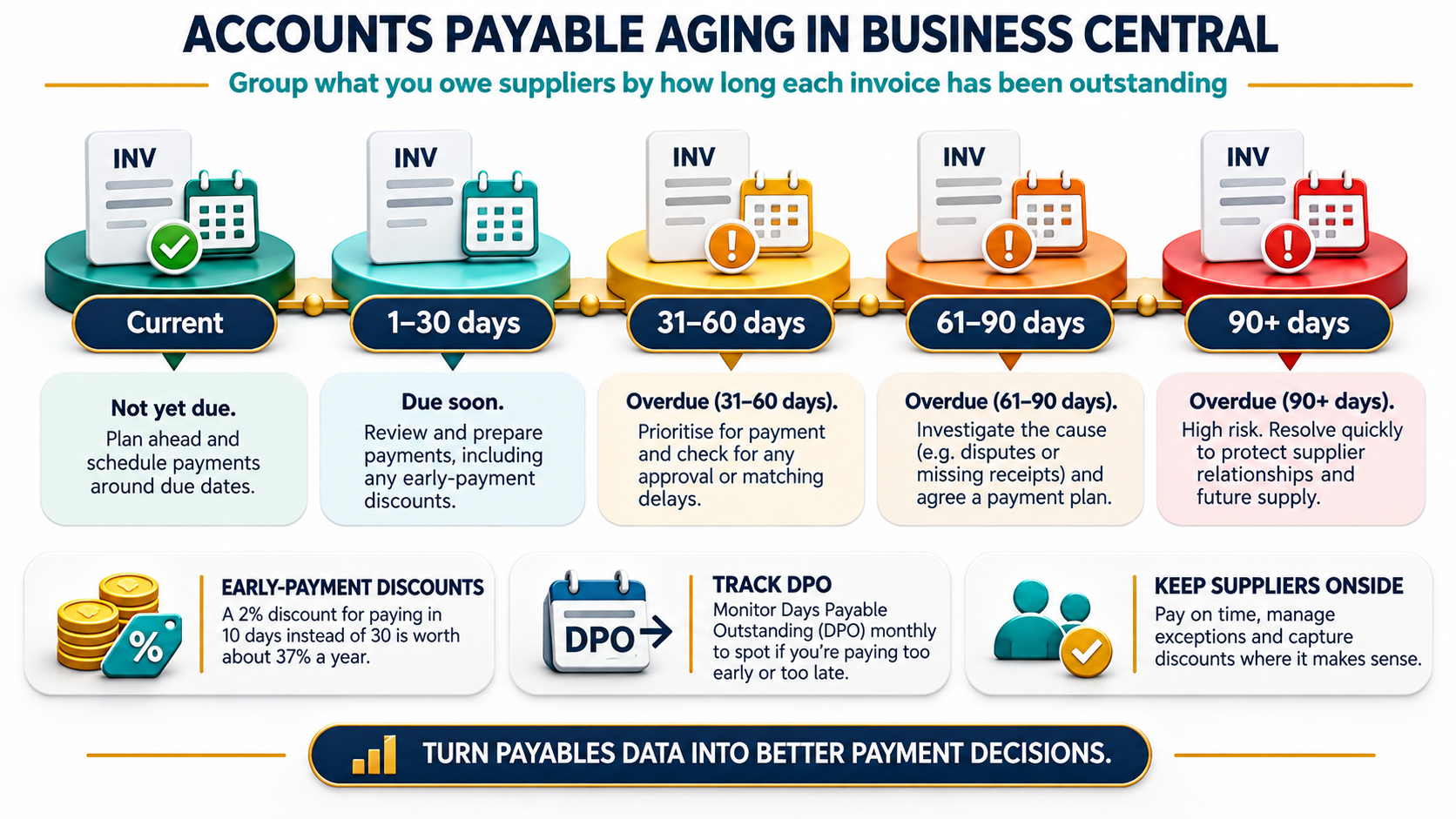 The timeline shows broad aging periods and the typical action for each one.
Report 4403 runs one company at a time and gives you a static workbook. Accounts Payable Insights compares companies and dimensions side by side, lets you click into any balance to see the vendor ledger entries behind it, and stays current with every data refresh. See how standard Business Central reports compare with Business Central Insights.
Should you age payables by due date, posting date or document date?
Age by due date to decide what to pay this week. Age by posting or document date to see how old the liability really is. The two views answer different questions, so most finance teams use both.
Aging basis | What it shows | Best for |
|---|---|---|
Due date | How far each invoice is before or past its payment deadline | Payment runs, overdue follow-up, supplier calls |
Posting date | How long the liability has been in your books | Month-end close, accruals, audit questions |
Document date | How long since the supplier issued the invoice | Disputes, matching delays, supplier statements |
The table shows why the same invoice can appear in different aging buckets across reports.
Accounts Payable Insights lets you switch Payables Aging (Back Dating) between due, posting and document date.
Microsoft's payment terms documentation notes that due dates run from the document date, not the posting date. Business Central calculates payment discount dates the same way. So an invoice entered late still gets its due date from the supplier's invoice date, as long as the Document Date is set to that date. A new invoice starts with the document date equal to the posting date, and if Link Doc. Date to Posting Date is on in Purchases & Payables Setup, Business Central keeps overwriting it. Set the Document Date to the supplier's invoice date before posting. Accounts Payable Insights tracks the average days from invoice date to posting, so you can see whether late entry is a habit.
What is Days Payable Outstanding (DPO)?
DPO estimates how many days of cost of sales your trade payables represent. It is an overall ratio, not an average of how long each invoice takes to pay.
DPO = Average trade accounts payable ÷ Cost of goods sold × Days in period
Average payables is usually opening plus closing balance divided by 2. A DPO of 45 means payables equal about 45 days of cost of sales. It does not mean every supplier is paid after 45 days.
Some calculations use credit purchases instead of cost of goods sold (COGS), so check the definition before comparing figures. Because COGS stands in for purchases from suppliers, payables for services and overheads sit in the balance but not in COGS, which pushes DPO up.
Falling DPO can prompt a check for early payments, but may also reflect purchasing changes.
Rising DPO may reflect longer agreed terms, slower payments or seasonal balances.
Confirm the cause using overdue amounts, actual payment dates and agreed terms.
You don't have to calculate DPO by hand. Finance Insights calculates it on its Essential CFO KPIs & Metrics page, alongside DSO, Days Sales of Inventory (DSI) and the cash conversion cycle. By default, Finance Insights averages payables across every calendar day in the period rather than opening plus closing divided by 2, and offers a Closing Balance option that matches Microsoft's Finance app, so a hand calculation may give a different figure. See our guide to 20 Business Central financial ratios.
Are you paying suppliers too early?
Check whether early payment earns a worthwhile discount or serves another agreed purpose. Without a benefit, paying 20 days before the due date moves cash out sooner than necessary.
Accounts Payable Insights shows how early you actually pay. Compare average payment terms with the average days invoices take to close, and see the share of invoices closed (by payment or credit memo) before their due date, by supplier.
For 2/10 net 30, a supplier offers 2% off for payment within 10 days; otherwise the full amount is due within 30 days. On a $50,000 invoice, paying $49,000 on day 10 instead of $50,000 on day 30 saves $1,000 for paying 20 days earlier.
Annualized simple return = ($1,000 ÷ $49,000) × (365 ÷ 20) ≈ 37.2%
Compare that with your borrowing costs and available cash before taking the discount.
Business Central payment terms hold the due date calculation, discount date calculation and discount percentage. Review each invoice's discount deadline alongside its due date; an aging bucket alone does not show whether the discount remains available. Accounts Payable Insights also shows the payment discounts you actually took, so you can see whether early payments are earning them.
Are you paying suppliers too late?
An invoice becomes late when its agreed deadline passes, not only when it reaches a 60- or 90-day bucket. Prioritize overdue items by age, value, dispute status and supplier importance. Delays can lead to tighter terms, prepayment demands or interrupted supply. In Accounts Payable Insights, Average Invoice Overdue Days and the share of applied amounts settled after the due date show which suppliers are routinely paid late.
Business Central's Payment Practices feature calculates agreed payment periods, actual payment timing and invoices paid within terms. Microsoft's Payment Practices guide explains period and vendor-size analysis.
Reporting rules vary by country. In the UK, for example, qualifying companies must publish payment-practice information; see the current UK government guidance. For financial years beginning on or after 1 January 2026, they must also include payment-practice disclosures in their annual report, and the government's late-payment plans include a mandatory 60-day maximum payment term, with some exceptions.
How do you review Business Central accounts payable aging each month?
Review Business Central accounts payable aging monthly for trends, and check it weekly before payment runs. Keep the as-of date, currency and aging basis consistent:
Run due-date aging and investigate overdue items, starting with material or supplier-critical balances.
Check discount deadlines over the next 10 days against cash availability.
Compare DPO with prior periods, then check changes against terms and purchasing activity.
Investigate old balances for disputes, missing receipts, unapplied credits or approval delays.
Reconcile the historical vendor balance to the payables control account using matching dates and filters.
What questions should your accounts payable aging report answer?
A useful Business Central accounts payable aging report should help you decide what to investigate and what to pay. Test your analysis against these questions:
Which suppliers account for the largest overdue balances?
What outstanding amounts fall due over the next 7, 30 and 60 days?
Are overdue balances concentrated in particular companies, currencies or business units?
Are actual payments earlier than agreed supplier terms require?
Which balances need investigation before the next payment run?
Each of these questions maps to a page in Accounts Payable Insights.
Amounts due show what you owe, not exactly when cash will leave. Combine them with planned payments, disputes and expected receipts. Accounts Payable Insights also shows goods received but not yet invoiced, and outstanding purchase orders, so you can see obligations coming before they reach payables.
Going further with Accounts Payable Insights
Accounts Payable Insights brings Business Central supplier data into interactive Power BI reports by supplier, company, currency and dimension.
Reports include Payables Overview, Payables Aging, Payables Aging (Back Dating), Before Due/Overdue by Currency, Document Application Analysis, Payables Trend, Payables by Dimension, Payables Cube and Vendor Statistics, with drill-through to vendor ledger entries and purchase lines.
Use the Aging Groups setup guide to configure boundaries. Our receivables back-dating tutorial includes a short section on Payables Aging (Back Dating), which works the same way for vendor ledger entries.
Frequently asked questions
Can Business Central show accounts payable aging as of a previous date?
Yes. Report 4403 provides an Aged As Of parameter, while Microsoft's Power BI Finance app includes Aged Payables (Back Dating). Payables Aging (Back Dating) in Accounts Payable Insights shows what you owed suppliers as of any past date, such as last month-end.
What is the difference between accounts payable aging and DPO?
Aging groups outstanding supplier balances by date, so you can see individual invoices and decide what to pay first. DPO is an overall ratio comparing trade payables with purchasing or cost activity over a period. Use aging to investigate specific balances and DPO to spot trends. Neither one alone tells you whether every supplier is paid on time.
What is a good DPO?
There is no universal target. Interpret DPO against supplier terms, industry, purchasing patterns and the calculation method. A move from 30 to 45 days could reflect longer terms or slower payment. Check overdue balances and actual payment timing before deciding whether a higher figure means better cash management or growing supplier risk.
Why doesn't my aged payables total match the general ledger?
The usual causes are a different as-of date, entries posted directly to the payables G/L account, vendor posting groups pointing to different accounts, exchange rate adjustments, and unapplied payments or credit memos. Run both with the same date, then compare by vendor posting group. In Payables Aging (Back Dating), keep Aging Inclusion set to Posting Date so the total reconciles to the payables control account.
Review both sides of working capital
Combine payables analysis with Business Central receivables aging to understand what you owe and what customers owe you.
Try Accounts Payable Insights free for 30 days
By Craig McCracken, Business Central Insights, makers of ready-made Power BI reports for Business Central
Enable meaningful interactions.
The right touchpoint and the right time.
Learn more about Business Central Insights